User Manual

A complete UTranDub guide to help you get started and make the most of every feature

Quick Start

Install & Launch

UTranDub requires no account — just download, install and launch. Choose your operating system:

Get the installer from the Download page. Once installed, double-click the desktop icon to launch the app.

First Launch

UTranDub automatically picks the interface language from your system language — Simplified Chinese for Chinese systems, English otherwise — so no manual setup is needed. You can change it anytime in Settings → General.

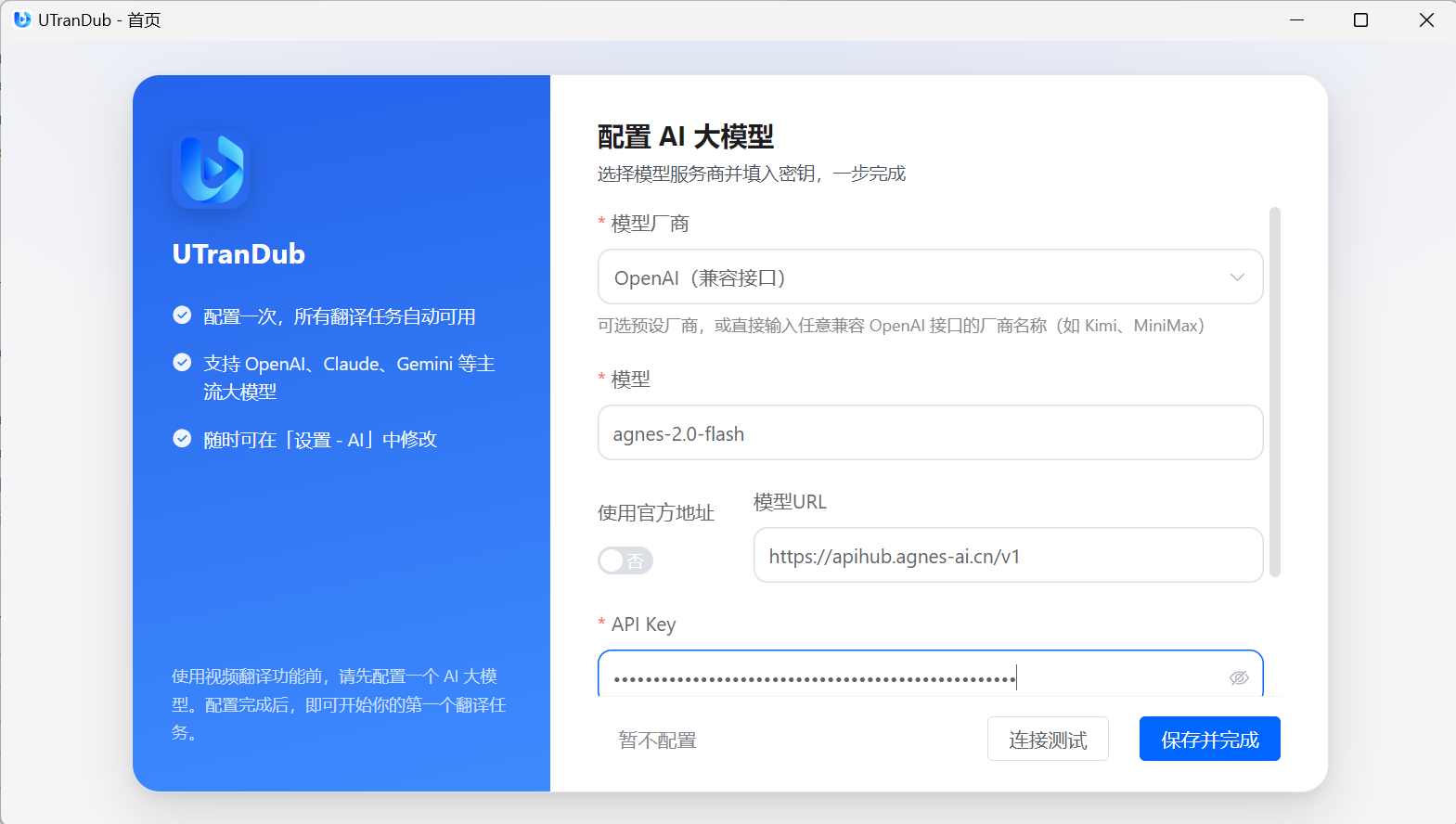
If the system language cannot be detected, a language selection screen appears for you to choose manually. The AI setup wizard then guides you through:

  1. Configure an AI model: pick a provider and enter your API Key — then you can start your first translation task. Or choose "Later" and add one in Settings → AI Services.

Translation cannot start without an LLM. Clicking "Start Generate" will prompt you to configure an AI model first.

Interface Navigation

The left sidebar has four entries, and the status light at the top shows AI service availability:

  • Home: the new-translation workbench
  • Tasks: view and manage all video translation tasks
  • Settings: AI services, dubbing model, translation preferences, HTTP API, license and general options
  • About: version info, update check and license status

All video and task data is kept on your local device and never uploaded to any server.
Quick start

Video Translation

Translation Flow

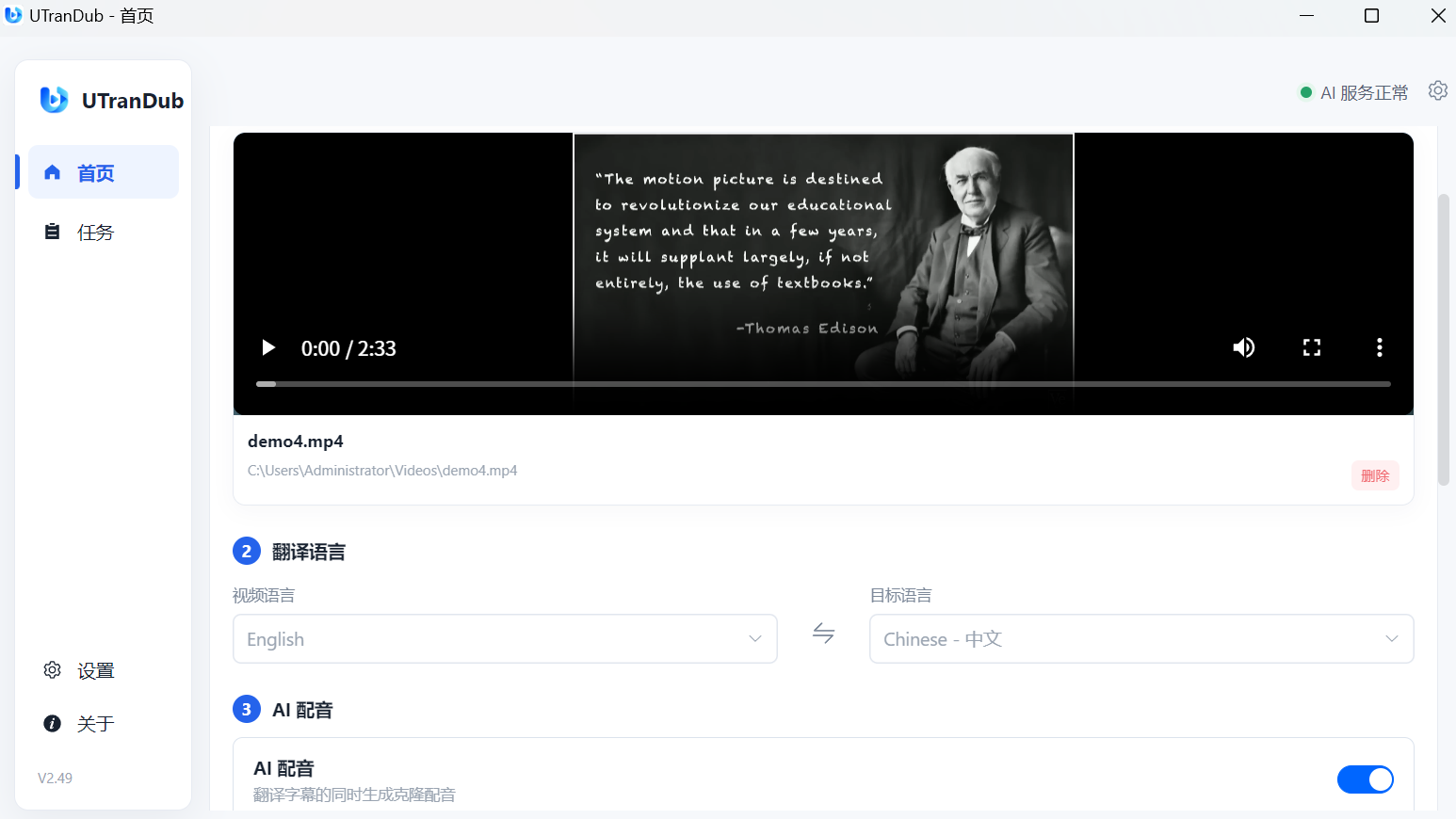
Create a translation task in the Home workbench by following these five steps:

  1. Select video: in local mode the file is used directly without uploading. Supports mp4, mov, mkv, avi, webm and other common formats.
  2. Translation language: choose the video language and target language — 31 languages are supported. You must specify the source language manually; there is no auto-detect.
  3. AI dubbing (optional): when on, a cloned voiceover is generated along with the subtitles. Dubbing only supports Chinese ↔ English and locks the subtitle mode to "Target only".
  4. Subtitle: choose the subtitle mode (Target only / Source only / Dual subtitles) and the subtitle type (Soft subtitle / Hard subtitle).
  5. Advanced settings (optional): adjust subtitle position (Top / Middle / Bottom), font size, text and background color, bold / italic, and preview the result with "Preview Subtitle".

At least one LLM must be configured before translating a video.

Start Generating

Click "Start Generating" to queue the task. Track progress in the "Task Overview" panel on the right, or manage it on the Tasks page.

Pipeline

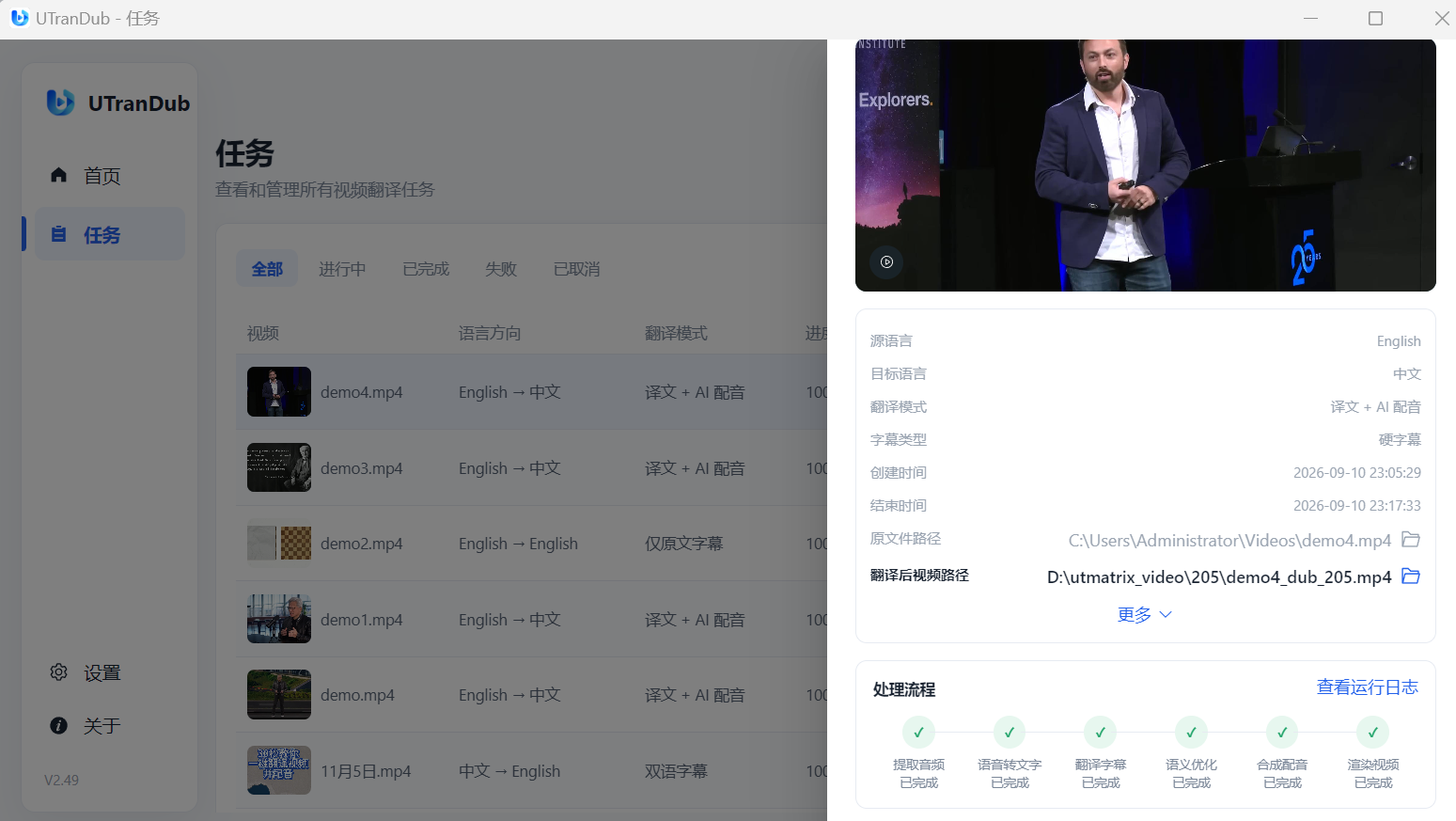
Each task goes through the following steps:

  • Extract audio → Speech to text → Translate subtitles → Semantic optimization → Synthesize audio → Render video
Video translation workbench

Task Management

Task List

The Tasks page lists all translation tasks. Filter by status (All / In progress / Completed / Failed / Cancelled) or search by file name.

  • The table shows video, language direction, translation mode, progress, status and creation time, with View / Pause / Resume / Delete actions per row.

Task Details

Click "View" to open the detail drawer, which contains:

  • Source and target language, translation mode, subtitle type, start and end time; original and translated file paths (click to open the containing folder); subtitle, dubbing and log paths; and an embedded video preview.

Runtime Logs

Click "View logs" in the task detail to watch the pipeline log in real time. Log files are stored on your local device — click the log path in the task detail to open its folder directly.

You can Pause or Resume a task at any time. All logs are kept on your local device.

Task management

Configure an LLM

Supported LLM Providers

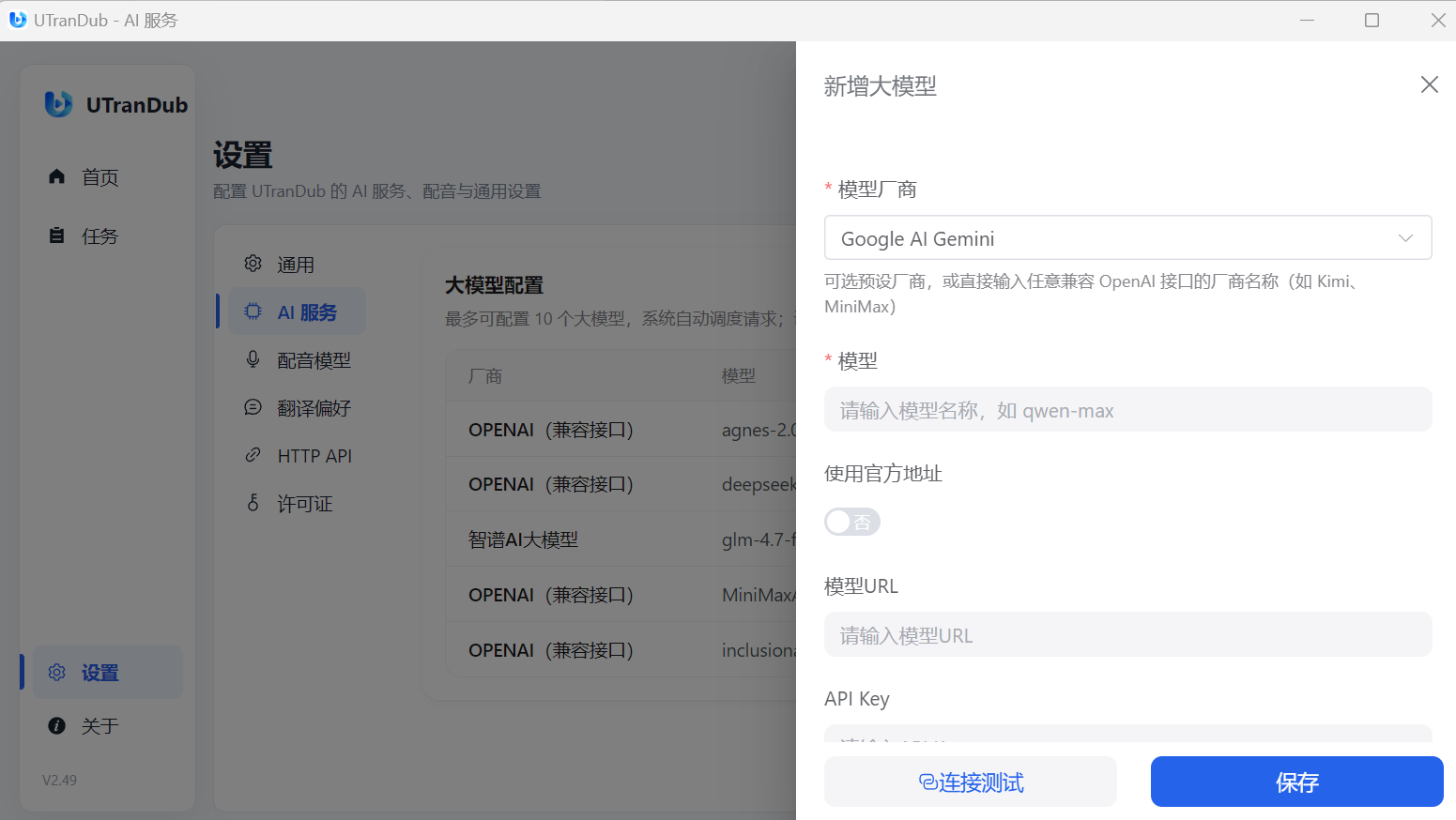
UTranDub includes several mainstream providers, all compatible with the OpenAI API:

  • OpenAI (Compatible API), Tongyi Qianwen, Zhipu AI, DeepSeek, ChatGPT, Google AI Gemini, OLLAMA
  • Or type any OpenAI-compatible provider name (e.g. Kimi, MiniMax).

Setup Steps

  1. Open Settings → AI Services
  2. Click "Add LLM"
  3. Choose a provider, then use the official URL or a custom Model URL
  4. Enter the model name and API Key
  5. Click "Test Connection", then "Save" once it passes

Up to 10 LLMs can be configured. The system schedules requests automatically and switches to other available models on failure.

LLM configuration

Configure a Voice Model

Supported Voice Models

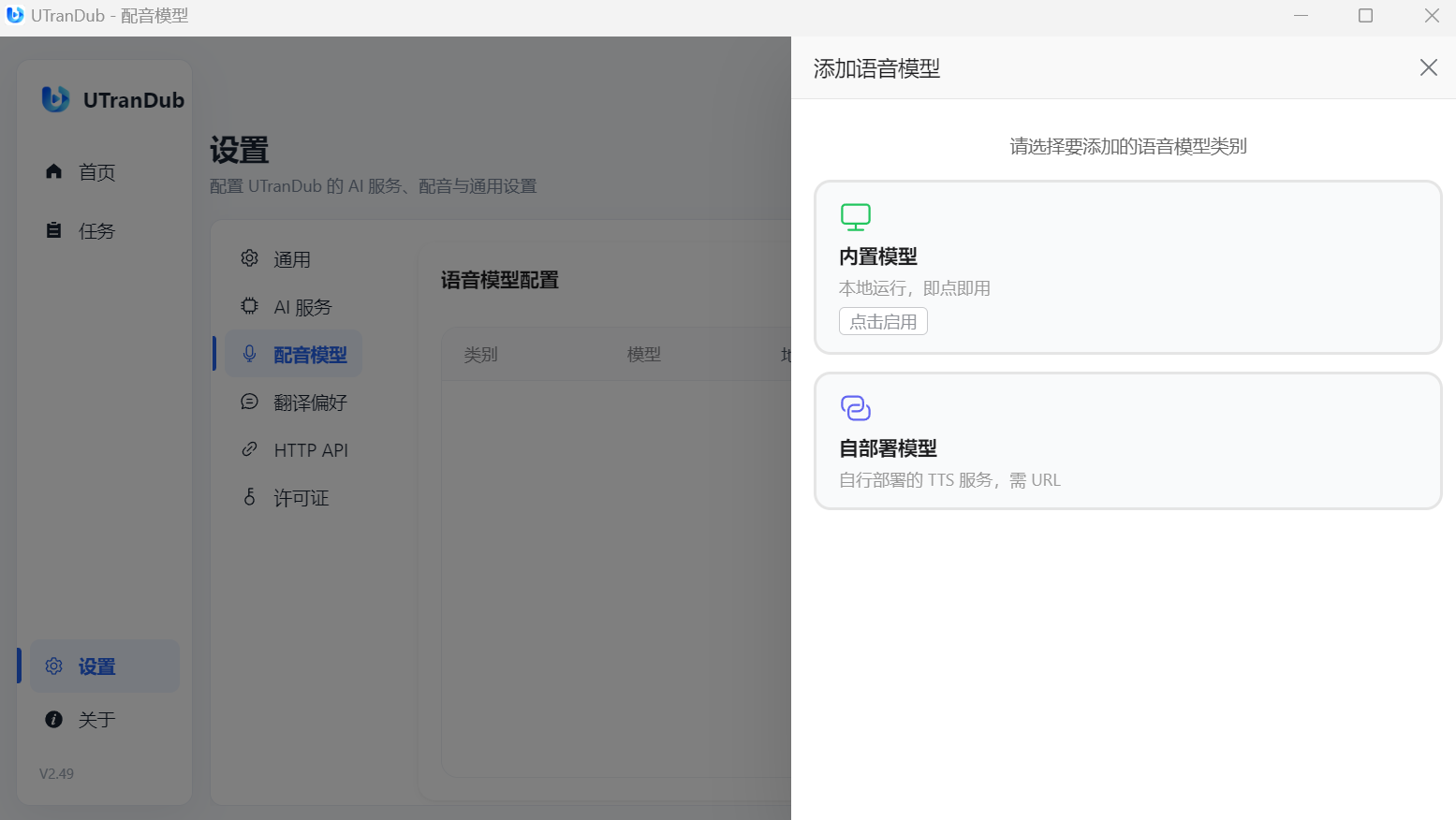
  • Built-in model ZipVoice: runs locally, no network required, detected automatically, and supports Chinese and English voice cloning.
  • Self-hosted model GPT-SoVITS: deploy the TTS service yourself and fill in the service address.

Setup Steps

  1. Open Settings → Dubbing Model
  2. Click "Add Voice Model"
  3. Choose "Built-in Model" or "Self-hosted Model"
  4. For a self-hosted model, fill in the service address (e.g. http://127.0.0.1:9880)
  5. Click "Test Connection", then "Save" once it passes

Only one voice model can be configured. Delete or disable the current one before switching.

The built-in voice model works out of the box — no extra deployment needed to try AI dubbing.

Voice model configuration

Glossary

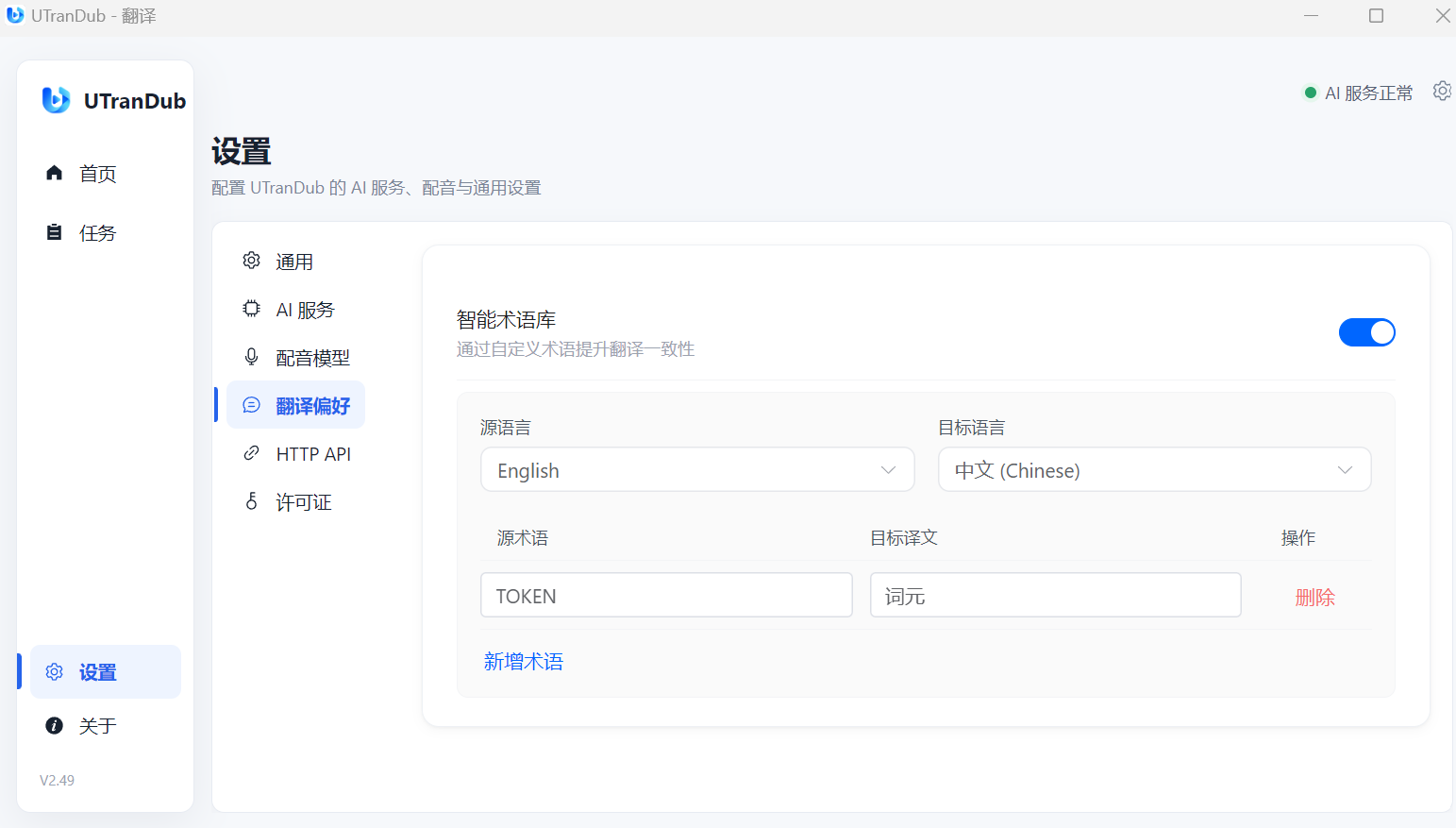
Enable the glossary in Settings → Translation Preferences to pin down terminology and keep translations consistent.

Add Terms

  1. Open Settings → Translation Preferences
  2. Turn on the "Smart terminology base" switch
  3. Select the source and target language
  4. Click "Add term" and fill in the source term and target translation
  5. Saved terms are applied automatically to subsequent translation tasks

Terms apply per language pair — make sure it matches the language pair used by your task.

Glossary

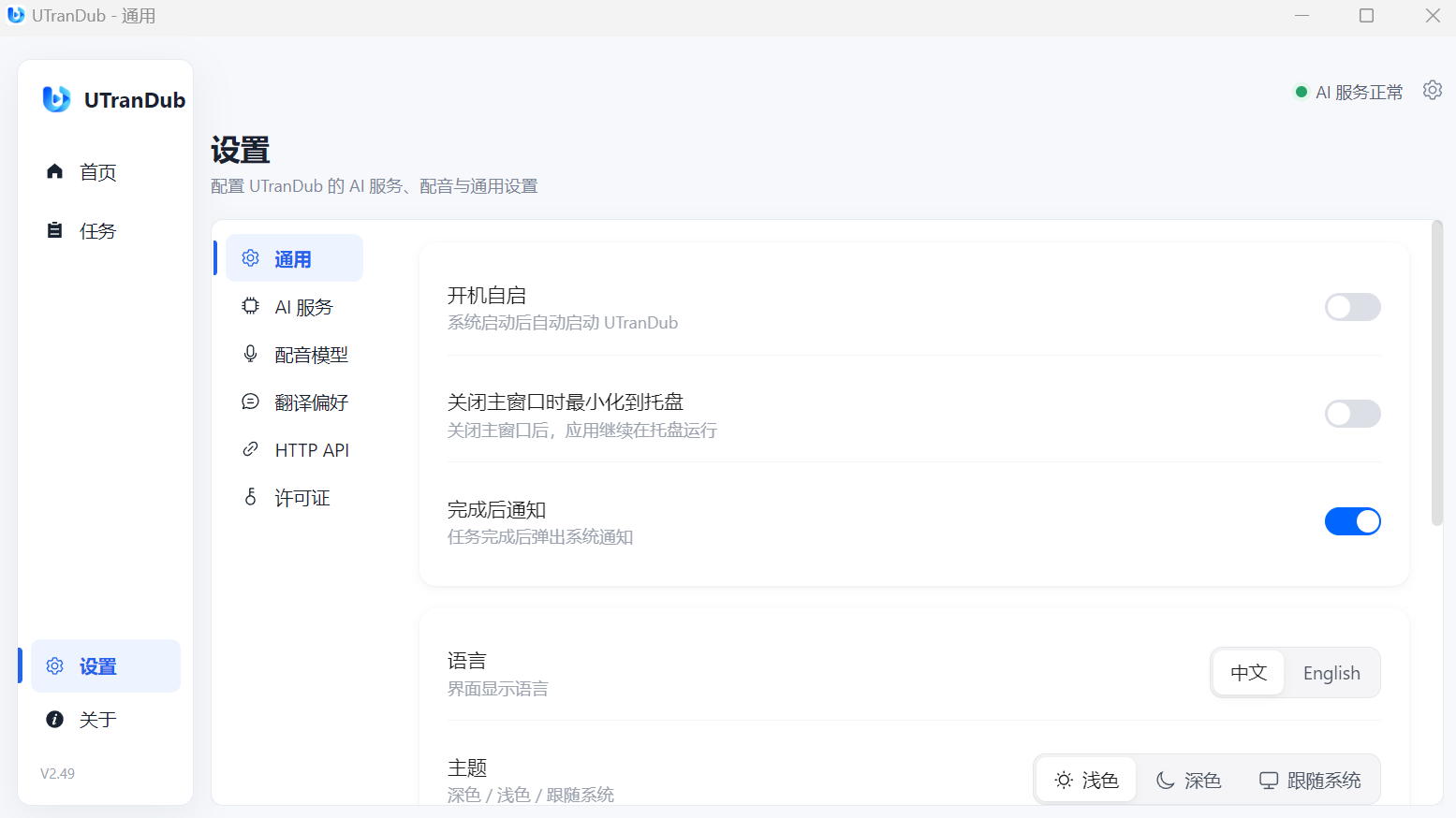
General Settings

Common Options

  • Launch at startup: start UTranDub automatically after the system boots
  • Minimize to tray: keep the app running in the tray after closing the window
  • Notify when finished: show a system notification when a task completes

Interface & Storage

  • Language: Chinese / English
  • Theme: Light / Dark / System
  • Save directory: where videos, subtitles and audio are saved
  • Cache directory: stores intermediate files and can be cleared manually
  • Clear cache: remove intermediate files older than 30 days
  • Restore default: reset save and cache directories to their default locations

Set the save directory to a drive with plenty of free space and clear the cache regularly.

General settings

HTTP API

Built-in HTTP Service

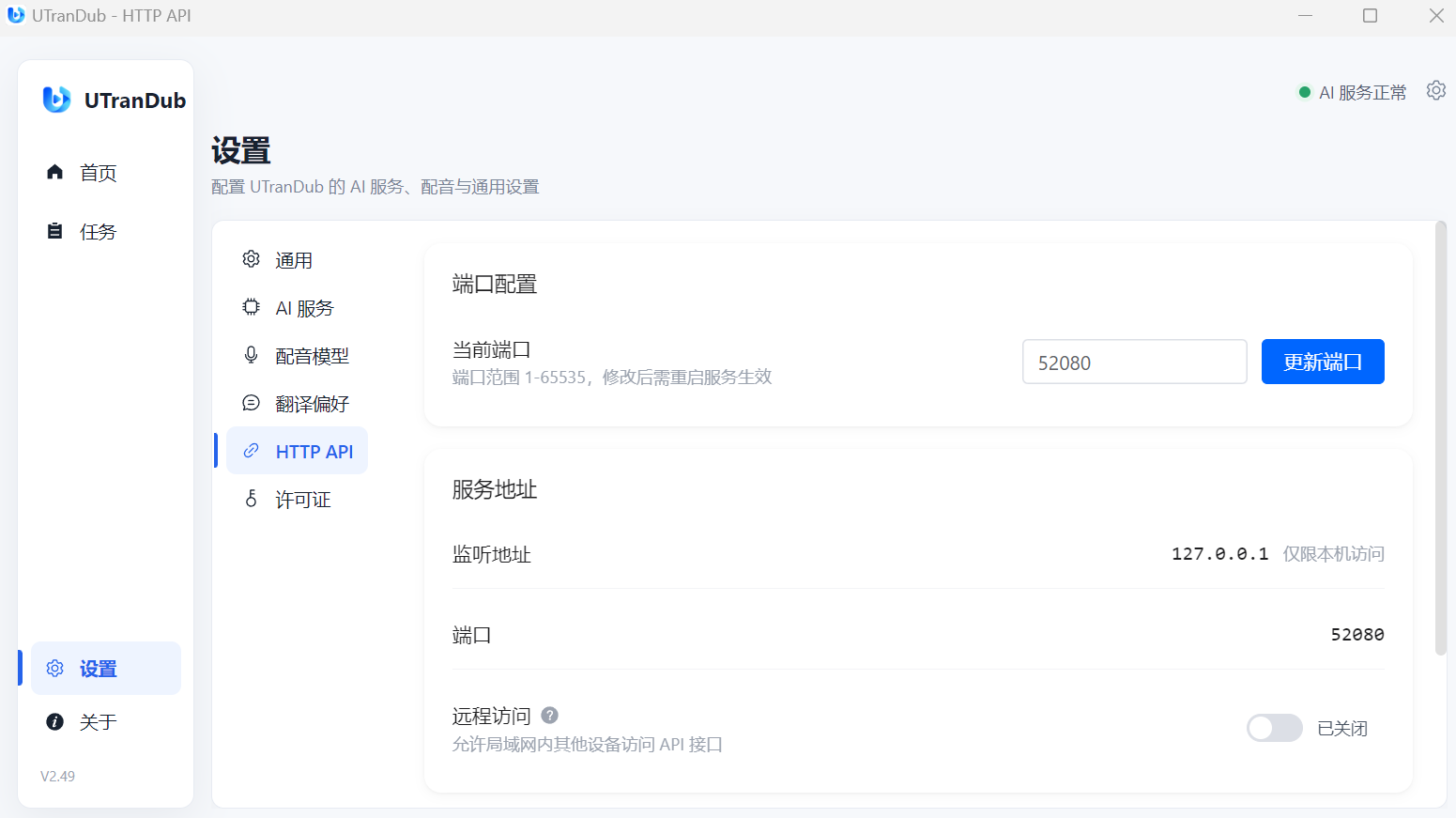
UTranDub ships with a built-in HTTP API service, listening on port 52080 by default. Manage it in Settings → HTTP API.

  • Current port: valid range 1–65535; a restart is required after changing it
  • Listen address: 127.0.0.1 for local access only; 0.0.0.0 to listen on all interfaces (LAN accessible)

API Documentation

Click "Open" to view the full API reference (Knife4j) in your browser at http://127.0.0.1:52080/doc.html, or click "Copy URL" to share it with other tools.

Remote Access

When "Remote Access" is enabled, other devices on the LAN can call the API via this machine's IP and port for remote debugging and integration.

Remote API access requires the Professional edition. Please upgrade to use it.

Example: update port

POST /api/v1/service/config/port
{ "port": 8080 }

Example: enable remote access

POST /api/v1/service/config/remote-access
{ "enabled": true }
HTTP API settings

License

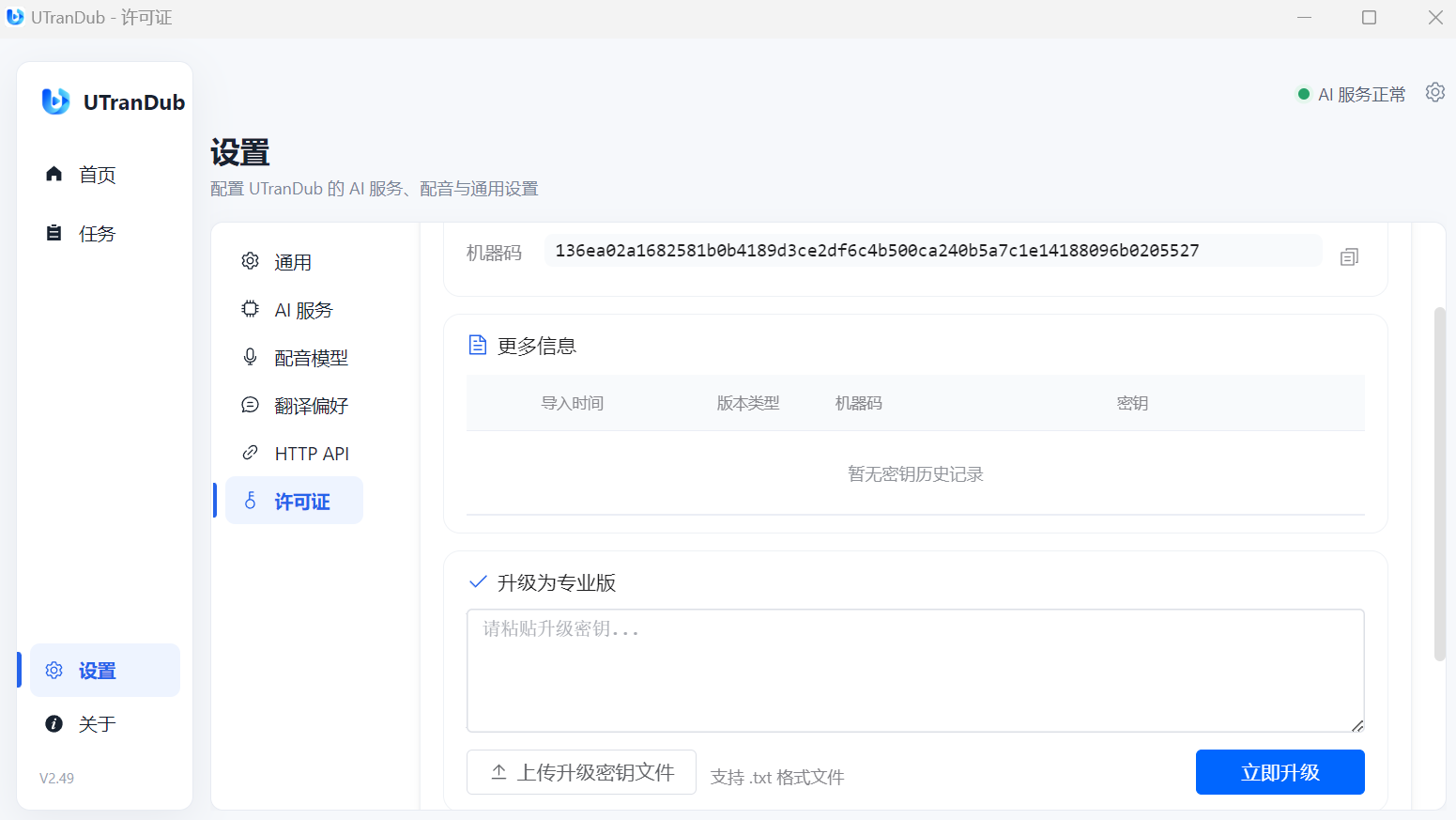
View Your License

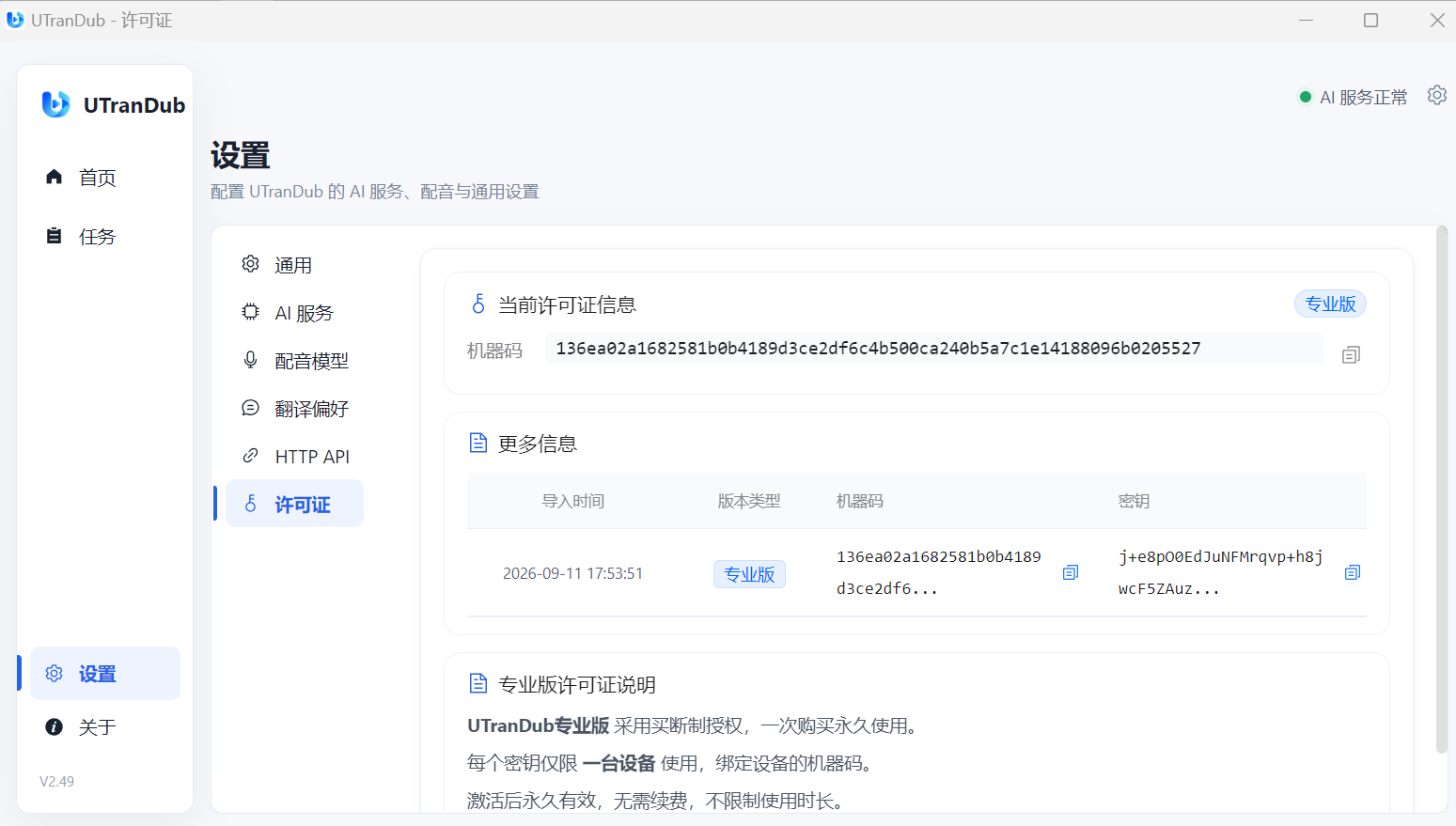
Open Settings → License to see your current license and machine ID. The machine ID is bound to this device and is required to obtain a Professional key.

Upgrade to Professional

  1. Open Settings → License
  2. Paste your upgrade key, or click "Upload upgrade key file" to import a .txt file
  3. Click "Upgrade Now" to activate

Professional License

  • A one-time purchase (lifetime) license model.
  • Each key is limited to one device and is bound to the machine ID.
  • Valid permanently once activated — no renewal and no time limit.

Do not reinstall the system or change hardware after activation — a changed machine ID will invalidate the key.

License

Basic vs Professional

UTranDub offers two editions. The main differences are:

FeatureBasicProfessional
Video translationSupportedSupported
SubtitlesSupportedSupported
AI dubbingSupportedSupported
GlossarySupportedSupported
Video length per taskUp to 5 minutesUnlimited
Daily generations3 tasksUnlimited
Remote API accessNot availableSupported
LicenseFreeOne-time purchase, lifetime

After upgrading, check your license status anytime in Settings → License.

Edition comparison